Short answer
Edit a TikTok in five passes, in this order: cut the pauses and fluffs, add captions, add B-roll over the lines that describe something, add sound, then pick the cover.
In the TikTok app, tap +, record or upload, tap Edit on the side panel, then drag a clip's ends to trim it or tap Split; Text, Sound and Overlay are along the bottom. Cutting first matters most: our 33.2-second test take came out at 20.8 seconds.
How do you edit a video in the TikTok app?
Open the editor from the camera, then work along the bottom toolbar: TikTok's help center (re-checked October 27, 2026) gives these steps (TikTok).
- Tap Add post +
At the bottom of the TikTok app, then record a video, or tap Upload to pick one from your phone.
- Tap Edit on the side panel
After recording you may need to tap Continue ✓ first; after uploading, tap Next, then Edit.
- Trim, split and reorder clips
Tap a clip or Edit. Drag the arrow on either side to shorten it, place the line and tap Split to cut it in two, hold and drag to reorder, pinch to zoom. Add + brings in more clips.
- Change the speed
Tap Speed, then Normal or Curve. Each clip takes one speed.
- Add text
Tap Text, type, tap ✓, then drag the arrows under the track to set how long it stays on screen.
- Add sound or a voiceover
Sound adds or replaces the track and adds sound effects; Voice on the side panel records a voiceover or applies a voice effect.
- Add overlays and transitions
Overlay layers a photo or video on top (pinch to size it, drag its ends to set the length); the Transition button sits between clips.
TikTok's editor limits
- 35
- photos and videos in one editing session
- 8
- overlays on one post
- 1
- sound per post
TikTok Help: Editing TikTok videos and photos, re-checked October 27, 2026.
The editor also has a Magic tool that applies an editing style, effect templates and AI Create, neither of which is available everywhere. What it doesn't list is a way to find the pauses or fluffed lines for you: every cut is a split you place by eye. That's why the order you work in matters.
What order should you edit a TikTok in?
Cut first, cover last. Every later pass hangs on the timing the cut sets: captions follow the words, B-roll sits over a sentence, music ducks under speech, and the cover is a frame of the finished video. Do them in another order and each cut moves things you already placed.
One take, five passes
- 1. CutPauses, ums, the stutter and the retaken line come out: 8 pieces left.33.2 s → 20.8 s
- 2. CaptionsTimed to the words that are left, then moved up out of TikTok's bottom bar.18 lines
- 3. B-rollOne cutaway over the sentence that describes what it shows.3.3 s
- 4. SoundMusic, if any, sits low under the voice.30% under speech
- 5. CoverA frame from the hook with its caption, so the grid shows what the video is about.
The finished 20.8 seconds, by beat
- 0.055–3.415sHook. "If your desk looks like this every morning, this is for you."
- 3.657–7.657sProblem.
- 7.907–14.164sProduct. B-roll goes over the second half.
- 14.421–17.781sResult.
- 18.038–20.598sVerdict.
Sentence times from AI edit's cut of our synthetic test take, October 2026.
How much should you cut from a talking take?
Cut every pause longer than a breath and every false start. We ran a 33.2-second synthetic test take (an AI voice and a made-up product) through the code behind UGCLive's AI edit at its default Cutting setting. The take has the problems real ones have: two long pauses, ums, a stutter and a line said twice.
The take before and after the cut, in seconds
| Raw take | 33.2 s |
|---|---|
| After the cut | 20.8 s |
| Removed | 12.4 s |
Our run of AI edit's rules on a synthetic test take, October 2026. The false start was marked by hand, where the app asks an AI model to find it.
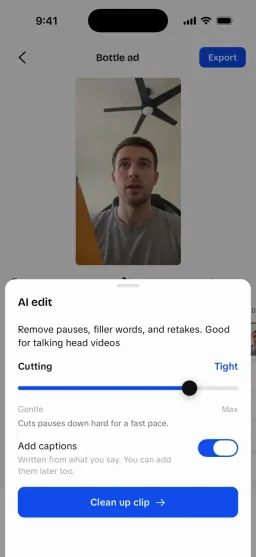
AI edit cleans up a talking-head clip: it shortens long pauses, cuts filler sounds like um and uh, removes stutters and keeps only the last good take of a line you repeated. In TikTok's editor the same cut is a split at each end of every pause and fluff, then a delete. If you do it by hand, keep a short beat between sentences; words butted together sound breathless. Once it's cut, every edit point is a jump in the picture, which the next two passes cover. Our silence and pause remover breaks one cut down second by second.
Where should captions go on a TikTok?
Above the bottom third. TikTok's In-Feed safe zone, which our TikTok safe zone checker draws, ends 66% of the way down a 1080×1920 frame; below that sit your handle, the post caption and the sound. We rendered the same caption line twice: once where UGCLive puts captions by default, 74% down, and once moved up to 60%.
The same caption line at two heights
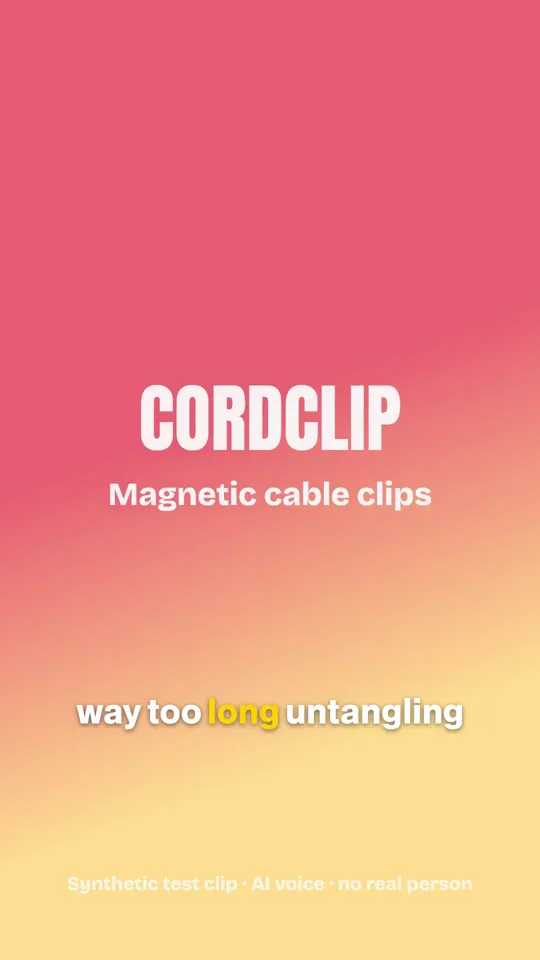
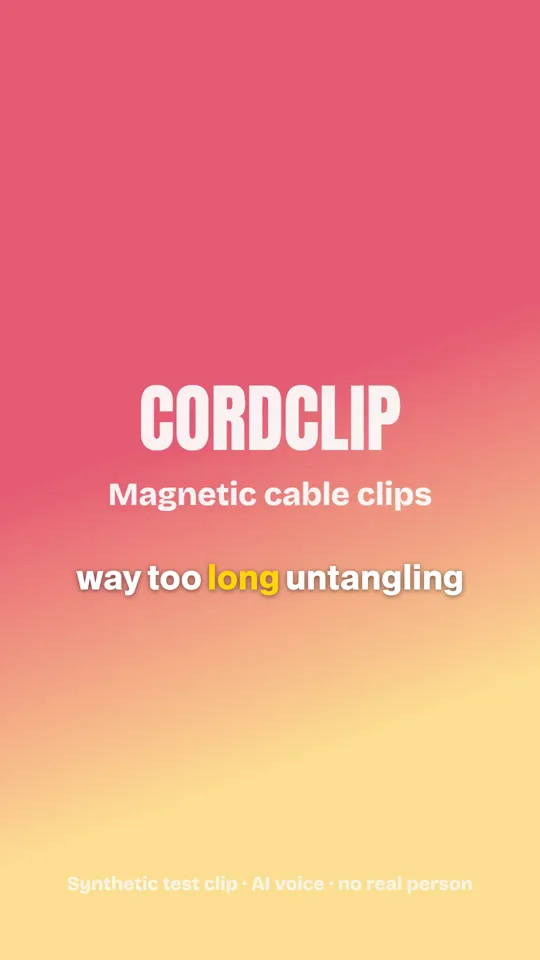
Frames from UGCLive's export renderer, October 2026, under a drawing of TikTok's interface. Synthetic test clip: an AI voice over a title card.
Keep each line to three or four words, timed to the voice, and away from the right edge where the like and share buttons sit. To caption a clip you've already filmed without opening an editor, our free caption generator writes the lines for you to paste. In UGCLive, auto captions time each word to your voice for you.
When should you cut to B-roll?
Over a sentence that describes something the viewer could see: the product, the problem, the result. The B-roll tool watches your product and lifestyle footage, skips the blurry and shaky parts, and lays the best moments over the matching captions, or builds a montage from them. Its placement rules, set out on our AI B-roll page, are a sensible default for any editor:
- Keep the first 1.5 seconds on your faceThe hook is you talking; a cutaway there hides who's speaking.
- 1.2 to 4.0 seconds per cutawayLong enough to see, short enough to get back to you.
- Back on your face for 0.5 s between cutawaysTwo cutaways in a row read as a slideshow.
- No more than 55% of the video coveredIt's still your face that sells it.
The cutaway in the finished edit
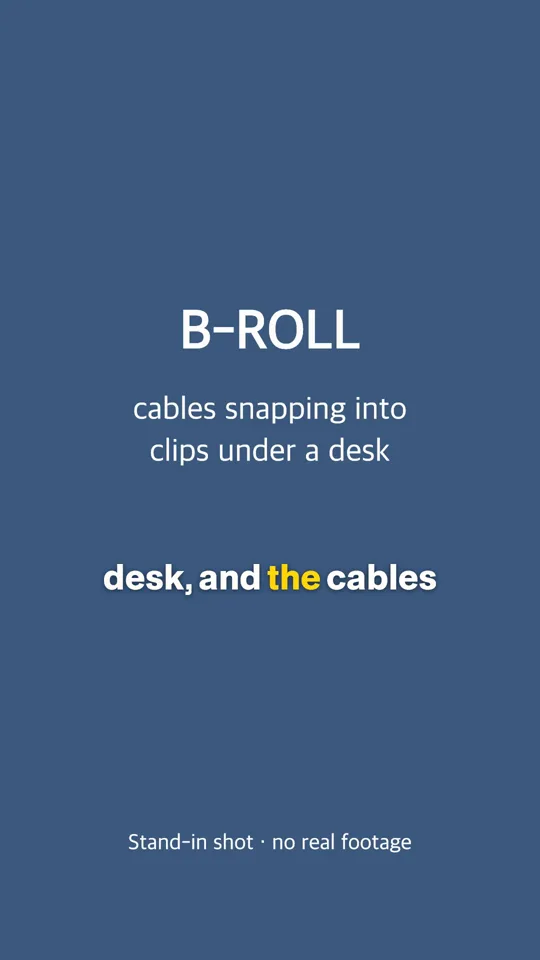
Frame from UGCLive's export renderer, October 2026. The B-roll is a drawn stand-in card, not real footage; the B-roll rules placed it, the sentence was picked by us.
How loud should music be under your voice?
Low enough that every word is clear: UGCLive drops music to 30% of its volume while you talk, fading in and out over 250 ms. On a talking video that's nearly the whole time; in our take, speech covered 20.5 of 20.8 seconds once the pauses were cut.
- 30%
- music volume under speech
- 20.5 s
- of 20.8 s with someone talking
- 1
- sound a TikTok post can have
UGCLive's mixing code run on our cut, October 2026; TikTok's limit from its help center.
So pick a quiet track without vocals, or none. TikTok allows one sound per post, and its help notes that business accounts can only use templates with music licensed for commercial use. If you add a trending sound in TikTok after exporting from another app, it becomes that one sound, so tap the sound clip in TikTok's editor to adjust it against your voice.
Should you edit in TikTok or in another app?
- TikTok's editorInside the app, free
- Check: Cutting pausesBy hand: split, split, delete
- Yes: SoundsTikTok's sound library, searchable in the editor
- Partly: Where it goesYour TikTok post
- Yes: OverlaysUp to 8
- UGCLiveFor talking videosOur app for talking videos, in beta on iPhone
- Yes: Cutting pausesAI edit, one tap, with a Cutting slider
- Check: SoundsMusic, sound effects and your voice; no TikTok library
- Yes: Your editA 1080×1920 MP4 you can post anywhere
- Yes: CaptionsTimed word by word, movable as one
TikTok's help center, re-checked October 27, 2026; UGCLive from the app.
For CapCut and the other phone editors, see our CapCut alternatives. Export at 9:16, 1080×1920, the size our TikTok video size guide lists.
What didn't we check?
Limits of this test
- Check: TikTok's editor itself. Its steps and limits come from its help center, read October 16 and re-checked October 27, 2026; we didn't run it on this take or time it.
- Check: Real footage. The take is synthetic and the B-roll is a drawn card. Real B-roll is picked by the B-roll tool from your clips.
- Check: Music. We worked out where music would duck from the mixing code; we didn't render a track.
- Check: What performs. Nothing here measures views or watch time.