




























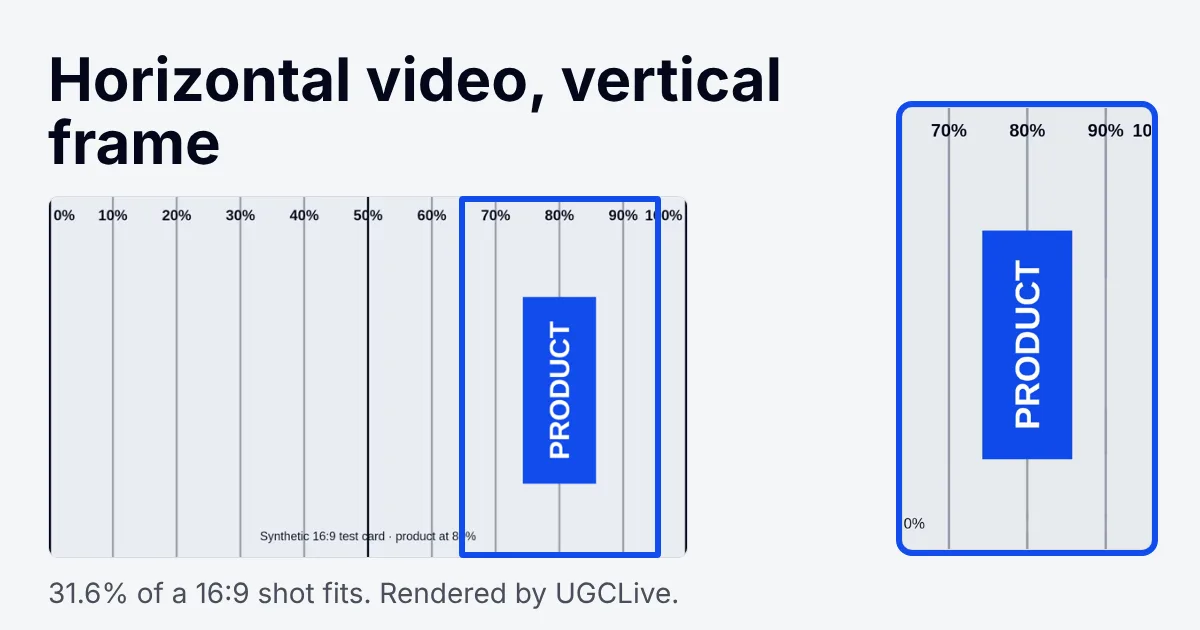
Short answer
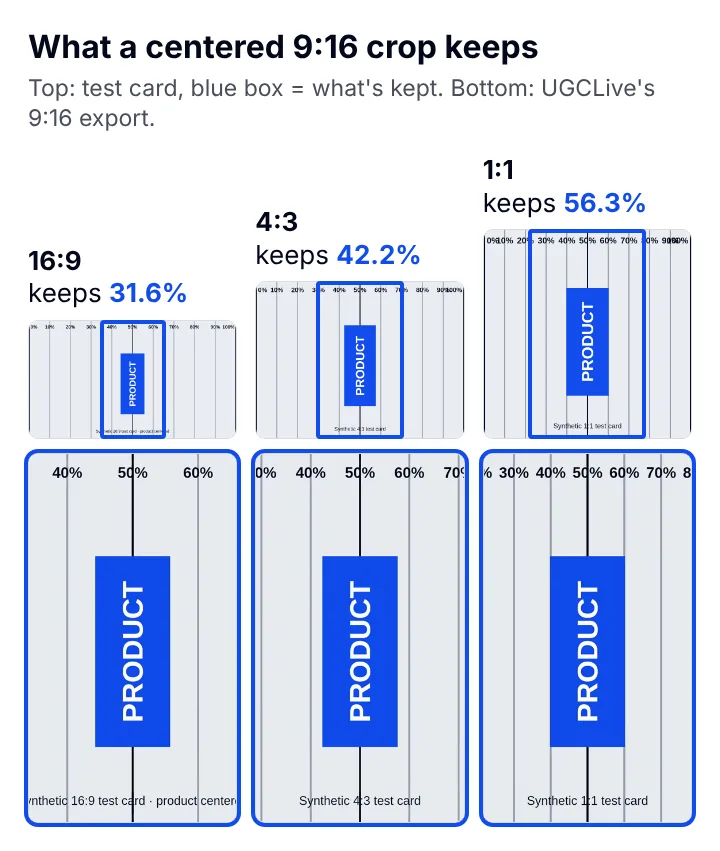
Crop it to 9:16 and slide the crop onto your subject, or fit the whole shot with empty space above and below. A centered crop keeps 31.6% of a 16:9 clip's width (42.2% of 4:3, 56.3% of 1:1), and a subject anywhere from 15.8% to 84.2% across a 16:9 shot can be moved to the center. Film in 4K if you know you'll crop: from 1080p the crop has only 608 × 1080 real pixels.
How much of a horizontal video fits in a 9:16 frame?
About a third of a 16:9 clip's width: 31.6%, so 68.4% is cut away. The rule of thumb that follows from it: keep the subject in the middle two-thirds of a wide shot and a crop can always center it. Every horizontal clip keeps its full height; all the loss comes off the sides.
| Source | Width kept | Width cut | Subject can be centered if it sits between |
|---|---|---|---|
| 16:9 | 31.6% | 68.4% | 15.8% to 84.2% of the width |
| 4:3 | 42.2% | 57.8% | 21.1% to 78.9% of the width |
| 1:1 | 56.3% | 43.7% | 28.1% to 71.9% of the width |
To check a clip's shape before you start, type its width and height into our free ratio and crop checker.
Where does the subject have to be to stay in the shot?
Within the middle 68.4% of a 16:9 shot: anything from 15.8% to 84.2% across can be put dead center by sliding the crop. A crop starts in the middle (UGCLive's does, and Reset puts it back there), which is why a product on the right side of a wide shot disappears until you move it.
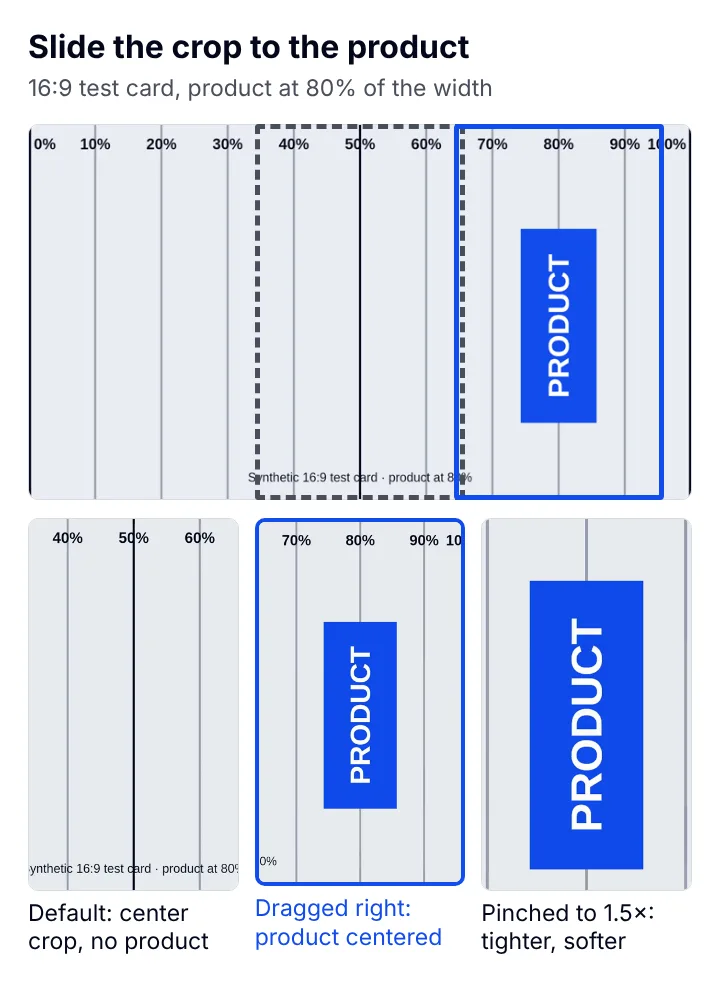
Past the edge of that zone the crop runs out of picture. It stops at the frame's edge, and the subject lands off-center instead:
| Subject's position in the source | 16:9 clip | 4:3 clip | 1:1 clip |
|---|---|---|---|
| 50% across | Centered | Centered | Centered |
| 65% across | Centered | Centered | Centered |
| 80% across | Centered | 52.6% across | 64.4% across |
| 90% across | 68.4% across | 76.3% across | 82.2% across |
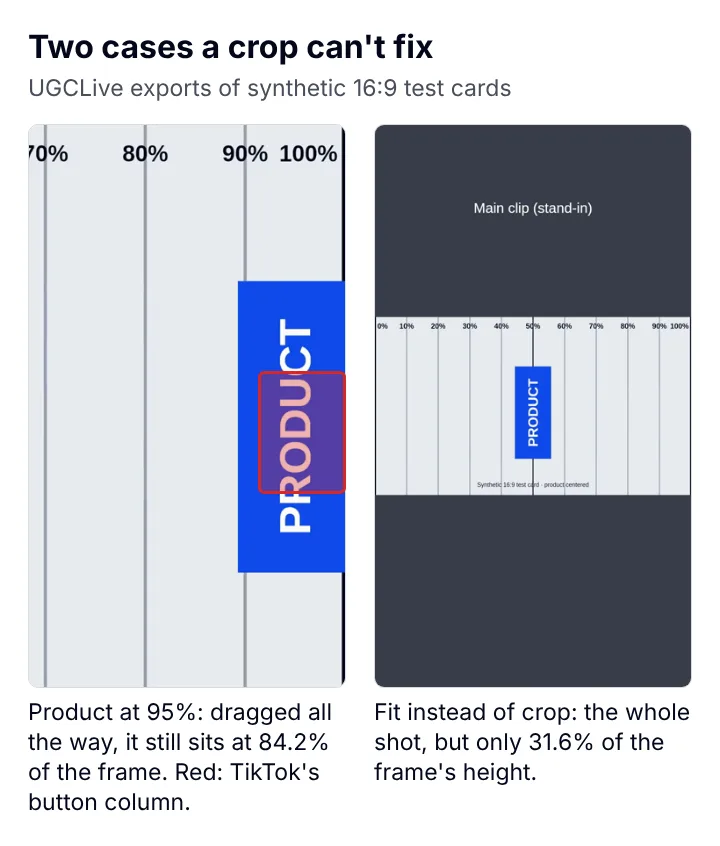
| 95% across | 84.2% across | 88.1% across | 91.1% across |
An off-center subject is only a problem where the app's buttons are. On TikTok the side buttons cover the right of the lower frame: in the In-Feed safe zone our TikTok safe zone checker draws, a subject's center has to stay between 11.1% and 72.2% across the frame from 840 px down. Run each platform's margins back through the crop and you get how far toward the edge of a 16:9 shot the subject can be:
| App | Allowed across the 9:16 frame | Allowed across the 16:9 shot |
|---|---|---|
| TikTok (In-Feed, lower half) | 11.1% to 72.2% | 3.6% to 91.2% |
| Instagram Reels | 6.0% to 94.0% | 2.0% to 98.0% |
| YouTube Shorts | 4.4% to 82.2% | 1.5% to 94.3% |
TikTok is the tight one: a product past 91.2% of a wide shot's width ends up under its buttons however you crop, while Reels allows up to 98.0%. If one video goes to all three apps, frame for TikTok.
How do you crop a horizontal video to 9:16, step by step?
Slide the crop until the subject sits on the center line, then check it against the app's buttons. The button names below are UGCLive's.
- Find where the subject sits
Scrub through the clip and note how far toward the edge the subject goes. If it stays in the middle two-thirds of a 16:9 shot, one crop can hold it centered.
- Start a 9:16 project
Use 1080 × 1920 (the 9:16 sizes page lists the others). UGCLive's projects are always 9:16, and our test exports came out 1080 × 1920.
- Put the clip on the main track and open the crop
Select the clip and tap Crop. The clip fills the frame, center-cropped, with rule-of-thirds guides over it.
- Drag until the subject is on the center line
Drag sideways to slide the picture. It stops where the picture's edge meets the frame's edge.
- Pinch in only if you need to
Pinching tightens the crop but uses fewer of the clip's pixels (limits below). Reset recenters it.
- Split the clip if the subject moves
A crop is one position for the whole clip, so split the clip where the subject moves and crop each piece.
- Check it against the safe zone
Export a frame or screenshot and drop it on the TikTok safe zone checker before you post.
Should you crop or fit a horizontal video?
Our pick: crop whenever the shot has one subject in its middle two-thirds, because a fitted 16:9 shot fills only 31.6% of the frame's height and the product ends up small on a phone. (That's the same 31.6% as the width a crop keeps: fitting and cropping are the same ratio turned around.) Fit when the whole width carries the point: two products side by side, a before and after filmed in one wide shot, or anything near the edges.
- Crop: fills the screen and keeps the product big; you lose 68.4% of a 16:9 shot's width.
- Fit: keeps all of it as a strip across the middle, with 34.2% of the height empty above it and as much below. Put the hook text and captions there.
- Fit over a blurred copy: the same strip with a blurred, zoomed copy of the clip behind it. It hides the empty space without making the product any bigger.
- Rotate: only for a clip that was filmed sideways or saved with the wrong orientation. Rotating a real horizontal shot just puts the picture on its side.
Does cropping a horizontal video lower the quality?
It can: a 9:16 crop has exactly as many pixels top to bottom as the clip is tall, so a 1080p clip gives 608 × 1080 real pixels, stretched 1.78× to fill 1080 × 1920. A 4K clip (3840 × 2160) gives 1215 × 2160, more than the frame needs, so nothing is stretched. The source's height decides it, and the shape doesn't: our 4:3 and 1:1 test sources, both 1080 tall, also cropped to 608 × 1080.
| Source | Pixels in the crop | Stretch at no pinch | Pinch before it stretches |
|---|---|---|---|
| 16:9, 1080p (1920 × 1080) | 608 × 1080 | 1.78× | Already stretched |
| 16:9, 4K (3840 × 2160) | 1215 × 2160 | None | Up to 1.13× |
| 4:3 (1440 × 1080) | 608 × 1080 | 1.78× | Already stretched |
| 1:1 (1080 × 1080) | 608 × 1080 | 1.78× | Already stretched |
Our pick: film in 4K when you know a horizontal shot will end up vertical, because a 4K clip is 2160 px tall, enough for a 1920-px-tall frame, and a 1080p clip isn't. Even 4K leaves only a little room to pinch in, up to 1.13×; past that, every source is enlarged.
What does a stretched crop look like?
Fine print goes soft first. We drew the same synthetic product label at 1080p and at 4K and exported both through UGCLive's renderer: at a 1.5× pinch the 1080p label is stretched 2.67× and its ingredient list blurs, while the 4K label, stretched 1.33×, still reads cleanly. Big shapes like the product name held up in both.
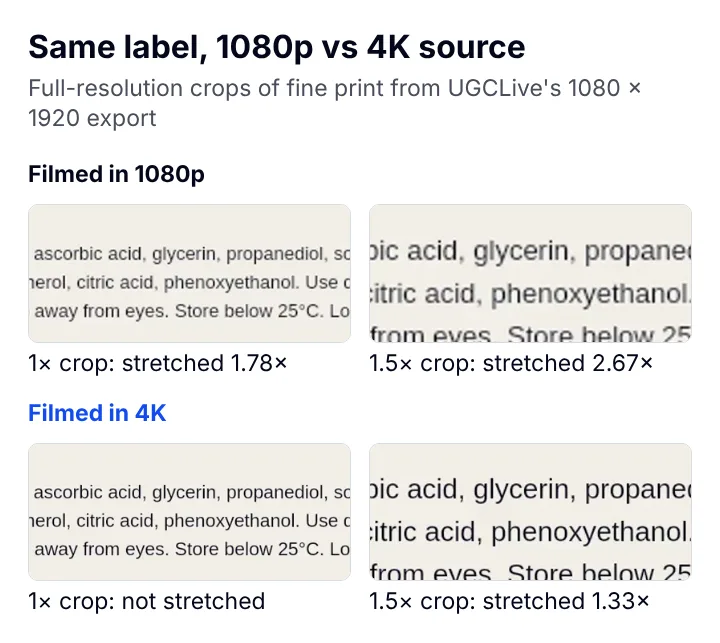
If a shot has to work both ways (a horizontal cut for YouTube and a vertical one for TikTok), film it in 4K and keep the product inside the middle 31.6% of the frame, a little narrower than the middle third: a centered vertical crop keeps exactly that strip, so the product survives with no sliding, and at 4K unstretched. If the shot is only for vertical apps, hold the phone upright and skip the crop.
How does this work in UGCLive?
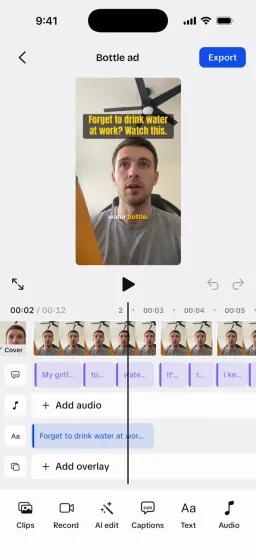
On the main track, a clip gets the Crop tool described in the steps: drag and pinch from 1× to 4×, Rotate in 90° steps, and Reset. The preview and the exporter read the same framing numbers.
Overlays differ, which matters for horizontal B-roll. An overlay set to Fill covers the frame center-cropped and can't be slid, so a product on the side of a wide shot is lost. Switch it to Fit and it becomes a picture you can drag and resize over your talking. If the subject in a wide shot isn't near the middle, put the shot on the main track and crop it there instead.
What did this test leave out?
Everything here comes from synthetic test cards (a ruler and a blue block), not real footage, so we measured geometry and pixel counts and compared one label's sharpness on screen, but didn't ask viewers whether a stretched crop bothered them. For Reels and Shorts we used side margins only, and TikTok's In-Feed zone stands in for its other placements. UGCLive's crop doesn't track a moving subject and can't blur a background behind a fitted shot; editors with automatic reframing handle a subject that walks across the frame with less work.