










































Short answer
To edit a video on iPhone, open it in Photos, tap Edit and drag the sliders at both ends of the timeline to trim it; Photos also rotates a video and adds filters. To cut something out of the middle, add titles or music, use iMovie (free from Apple), where you split a clip at the playhead and delete the piece. For a talking video, that hand work adds up: on our 60-second test take, matching an automatic cut took 34 trims, splits and deletes, plus 39 caption lines typed as titles.
How do you edit a video in the Photos app?
Photos is already on your iPhone and edits in place. Apple's help page (published May 1, 2026) lists what it does to a video: trim the start and end, rotate it, add filters, slow down video filmed above 30 frames per second, change which part of a slo-mo video plays slowly, and, on iPhone 16, iPhone 17 and iPhone Air, change the Audio Mix to bring voices forward (Apple).
Trim a video in Photos
- 1. Open the videoIn Photos, tap the video, then tap Edit.
- 2. Drag the endsMove the sliders on both sides of the timeline to the new start and stop.
- 3. Check itTap play to watch the trimmed version before you save.
- 4. Save a copyTap Done, then Save Video as New Clip to keep the original too.
Pick Save Video as New Clip while you're learning. Save Video replaces the original with the trimmed version; you can still go back with Edit, Revert, Revert to Original. A clip saved as a new clip keeps its trimmed length, and Revert won't bring the cut seconds back to that copy.
What Photos can and can't do to a video
Can
- Yes: Trim the start and the end
- Yes: Rotate and add filters
- Yes: Bring voices forward with Audio Mix (iPhone 16, 17 and Air)
- Yes: Change which part plays in slow motion
Can't
- No: Cut a pause or a fluffed line out of the middle
- No: Join two clips into one video
- No: Add text, captions or music
Apple: How to edit videos on your iPhone, checked October 16, 2026.
How do you cut out the middle of a video on iPhone?
Use iMovie, Apple's free editor, which splits a clip in two at the playhead so you can delete the part between two splits (iMovie User Guide). It's on the App Store at no cost; its last update was version 3.0.5 on December 16, 2024 (App Store).
Remove a pause or a bad line in iMovie
- 1. Start a movie projectTap Start New Project, then Movie, pick your clips and tap Create Movie. Magic Movie and Storyboard projects build the edit for you and give you less control over cuts.
- 2. Find the start of the bad partScroll the timeline until the playhead (the white line) sits where the pause or fluff begins.
- 3. Split thereTap the clip, then the Actions button, then Split. Or swipe down over the playhead on the selected clip.Split 1
- 4. Split again where it endsMove to where you start talking again and split a second time.Split 2
- 5. Delete the middle pieceTap the piece between the two splits, then tap Delete. The pieces either side now play one after the other.Delete
iMovie also adds titles, music from more than 130 soundtracks, sound effects, a recorded voiceover, filters, and picture in picture, green screen and split screen (App Store). Titles are added to a clip from its inspector with the Titles button (iMovie User Guide). We found no topic on captions or subtitles in the guide's 53 topic pages (guide contents), so for subtitles you'd type each line as a title on its own piece of clip.
How much of a minute of talking does each app cut?
We put the same 59.6 seconds of talking footage through all three. It's two synthetic test takes (AI voices, made-up products, no real person) with the problems real takes have: long pauses, ums, a stutter and a line said twice. Photos' best trim keeps everything from just before the first word to just after the last. For iMovie we counted the hand actions it would take to make the same cuts AI edit made, at the app's default Cutting setting.
Seconds left from 59.6 s of talking, and the work it took
| Raw takes | 59.6 s |
|---|---|
| Photos, trimmed | 58.5 s |
| iMovie, by hand | 40.5 s |
| UGCLive AI edit | 40.5 s |
Our run on synthetic test clips, October 2026: Photos' trim worked out from the word timings, iMovie's actions counted from AI edit's own cut list. The retaken line was marked by hand, where the app asks an AI model.
The same moment, 5.5 seconds in


Frames from the synthetic test clip and from UGCLive's export renderer, October 2026. Synthetic footage: an AI voice over a title card.
A perfect hand edit in iMovie would end up the same length as AI edit's. The difference is the 34 actions and 39 titles, and the fact that every one of them needs you to find the exact frame where a word starts. What AI edit cuts, and how the Cutting slider changes it, is on our silence and pause remover page; the rest of the AI video editor is a tap away from it.
Which iPhone video editor should you use?
- PhotosBuilt in, free
- Best forTrimming the ends of one clip, fixing color
- No: Cut out the middleNo
- No: CaptionsNo
- No: Several clips in one videoNo
- iMovieApple, free, last updated December 2024
- Best forHome movies, trailers, music and titles
- Check: Cut out the middleBy hand: split, split, delete
- No: CaptionsNo captions topic in Apple's guide; titles typed one by one
- Yes: Several clips in one videoYes
- UGCLiveFor talking videosOur app for talking videos, in beta on iPhone
- Best forTalking to camera: reviews, UGC ads, tutorials
- Yes: Cut out the middlePauses, ums and retakes cut by AI edit
- Yes: CaptionsTimed word by word from what you say
- Yes: Several clips in one videoYes, with trim, split, speed and zoom free on Starter
Apple's help pages and App Store listing, checked October 16, 2026; UGCLive from the app.
Other phone editors such as CapCut and InShot sit between iMovie and UGCLive: multi-track timelines, auto captions and templates. We compare them, prices and watermarks included, in our CapCut alternatives.
How do you edit a talking video in UGCLive?
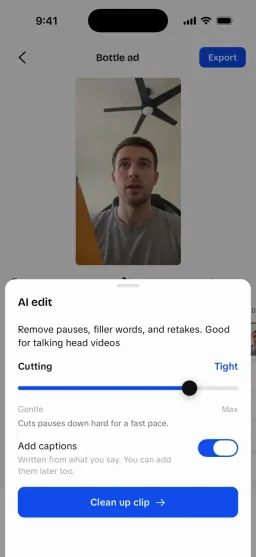
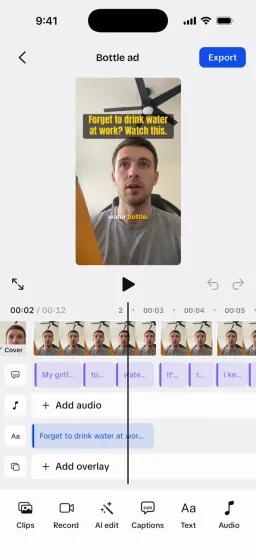
AI edit cleans up a talking-head clip: it shortens long pauses, cuts filler sounds like um and uh, removes stutters and keeps only the last good take of a line you repeated. Auto captions transcribe every unmuted clip and time each word, so word-by-word caption styles follow your speech. You do both from the editor's bottom row, and every change is one undo step.
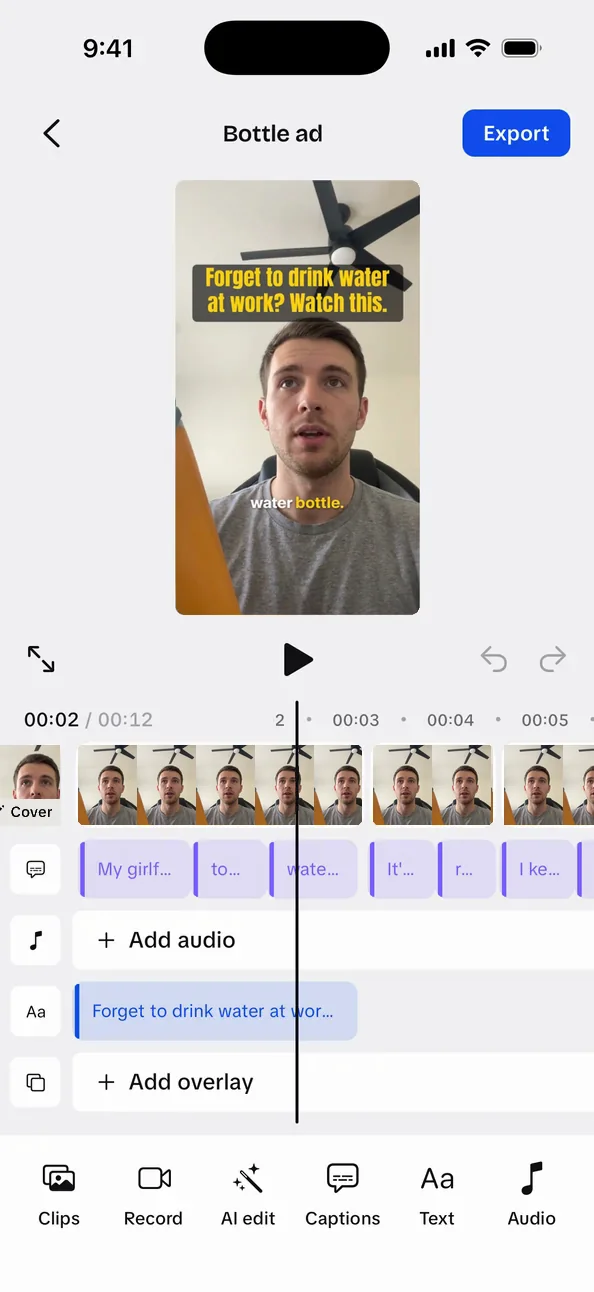
- PreviewShows the video at 9:16, captions where they'll be burned in.
- Clip timelineTrim, split, reorder; each AI cut shows as a new piece.
- Caption laneOne block per caption line. Tap one to retype it.
- AI editThe Cutting slider sets how hard pauses are cut.
- ExportRenders a 1080×1920 MP4 to save or post.
From a raw take to a posted video
- 1. Import or recordPick clips from Photos, or record with the teleprompter.
- 2. AI editLeave Cutting on Balanced, the default, for a first pass.
- 3. CaptionsTurn on Add captions, or add them later from the Captions tool.
- 4. ExportSave the MP4 to Photos, then post it from TikTok or Instagram.
What size should an iPhone video be for TikTok and Reels?
Vertical 9:16, exported at 1080×1920. Your iPhone films in that shape when you hold it upright, so the thing to watch is where your text sits: TikTok and Reels put their buttons and the post caption over the bottom and right of the frame. Our 9:16 aspect ratio guide covers converting other shapes.
Our edited frame under TikTok's buttons
Frame from UGCLive's export renderer, October 2026, under TikTok's interface, with the In-Feed safe zone from our TikTok safe zone checker.
The frame showed us something to fix. TikTok's In-Feed ad safe zone ends 66% of the way down a 1080×1920 frame, and UGCLive puts captions 74% down by default, so on a TikTok the post caption can cover them. Drag one caption up on the video before you export; the others move with it. The same goes for text you add in iMovie or any other app.
What didn't we test?
Not covered here
- Check: Real footage. The minute of talking is synthetic. A real person's take can have more or fewer pauses.
- Check: Time on a phone. We counted actions; we didn't time a person doing them. Finding the right frame for each split is the slow part.
- Check: Retake detection. The line said twice was marked by hand. The app asks an AI model to find it, which we didn't call in this run.
- Check: Other apps. CapCut, InShot and others have their own auto captions; we didn't run them on this clip.